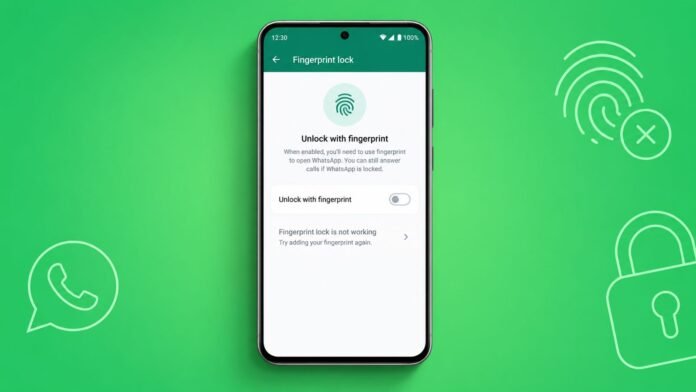
Bypass WhatsApp Fingerprint Lock Without Root using simple steps. Many users face fingerprint authentication problems sometimes.
A damaged sensor can stop WhatsApp access. Finger injuries may also cause login issues. Thankfully, several safe methods exist today.
Bypass WhatsApp Fingerprint Lock Without Root: Why It May Be Needed
WhatsApp offers fingerprint lock for better privacy. This feature protects chats from unwanted access. Only registered fingerprints can unlock the application.
The feature works smoothly for most users. However, problems can appear unexpectedly sometimes. When fingerprint verification fails repeatedly, WhatsApp remains locked. Users cannot access messages or media.
Many people think this is unusual. However, genuine situations can create such problems. These situations affect many Android users worldwide.
Common reasons include damaged phone hardware. Sometimes the screen gets cracked accidentally. Phones with in-display fingerprint scanners suffer more. A damaged display may stop fingerprint detection.
Finger injuries can create another problem. Cuts or bandages affect fingerprint recognition greatly. The scanner may fail reading fingerprints correctly.
Some users also change smartphones frequently. Others accidentally enable fingerprint lock. Later, they may prefer another security method.
Remember one important point here. This method does not provide unauthorized access. It only helps legitimate phone owners. It works when fingerprint authentication becomes unavailable.
Situations Where Users Need This Method
Many users disable fingerprint protection for practical reasons. Some common examples include:
- The fingerprint sensor stopped working suddenly.
- The phone display became damaged accidentally.
- Registered finger suffered a minor injury.
- Finger remains covered with medical bandages.
- User enabled fingerprint lock accidentally.
- The user plans to switch to another phone.
- The device fingerprint scanner stopped responding.
- Users prefer password-based protection instead.
These situations make bypassing necessary sometimes.
Important Requirement Before Starting
Android devices require backup security methods. Before removing fingerprints, users need:
- Screen lock PIN
- Pattern lock
- Device password
Android requires these credentials during setup. They are needed before registering fingerprints. They also help manage biometric settings later.
Without these credentials, fingerprint settings remain inaccessible.
Through Android Settings
The easiest method involves removing fingerprints completely. Once fingerprints disappear from the device, WhatsApp automatically disables biometric protection.
The exact menu names vary slightly. Different manufacturers use different interfaces. However, the process remains almost identical.
Step 1: Open Device Settings
First, launch the Settings application. This section contains security management options.
Step 2: Open Security Options
Look for security-related settings. Possible menu names include:
- Passwords and Security
- Security and Privacy
- Device Security
- Lock Screen Security
Select the available option.
Step 3: Access Fingerprint Management
Locate the Fingerprints section. Your device requests authentication first. Enter your:
- PIN
- Pattern
- Password
This confirms device ownership securely.
Step 4: Remove All Saved Fingerprints
Tap each registered fingerprint individually. Select Delete for every fingerprint. Continue until none remain registered.
Removing every fingerprint is important. Leaving one fingerprint may keep protection active.
Step 5: Reopen WhatsApp
Open WhatsApp after fingerprint removal. The application checks biometric availability automatically.
Since fingerprints no longer exist, WhatsApp disables fingerprint protection. The application may request your device PIN. Enter it and continue normally.
The lock feature becomes disabled automatically.
Why This Method Works
WhatsApp depends on stored fingerprints. When fingerprints disappear completely, biometric authentication fails. The application cannot request fingerprint verification anymore.
As a result, WhatsApp removes fingerprint protection automatically. This allows normal access using device credentials.
The method requires no rooting process. No third-party applications are required. Everything happens through official Android settings.
Using WhatsApp Settings
Some users still have fingerprint access available. They simply want to disable the feature permanently. WhatsApp includes a built-in option.
Disable Fingerprint Lock Inside WhatsApp
Follow these steps carefully:
- Open WhatsApp application.
- Tap the three-dot menu icon.
- Select Settings from the menu.
- Open the Privacy section.
- Scroll downward until App Lock.
- Open App Lock settings.
- Find Unlock with Biometric option.
- Turn off the green switch.
The feature becomes disabled immediately. WhatsApp no longer requests fingerprint verification.
Disable Fingerprint Lock Through Phone Settings
Certain Android phones provide additional controls.
These controls manage biometric permissions separately. Follow these steps:
- Open Settings.
- Select Security and Privacy.
- Open Biometrics settings.
- Choose Fingerprints.
- Review applications using biometrics.
- Locate WhatsApp.
- Disable biometric access permission.
This method works on many devices. Samsung and Huawei phones commonly support it.
Menu names may differ slightly. However, the process remains similar.
Benefits of Disabling Fingerprint Lock
Many users prefer disabling biometrics permanently. Benefits may include:
- Faster WhatsApp access.
- Fewer authentication failures.
- Better access after screen damage.
- Easier device migration.
- Alternative security preferences.
- Improved usability during injuries.
Each user can choose suitable protection.
How to Protect WhatsApp Without Fingerprint Lock
Many users forget an important step. Removing fingerprint protection creates security risks. Anyone holding the phone may access WhatsApp easily.
Therefore, another protection method is recommended.
Create a Custom WhatsApp Password
WhatsApp allows password-based protection. Follow these steps:
- Open WhatsApp Settings.
- Go to Privacy settings.
- Open App Lock section.
- Create a new password.
- Confirm the password.
After setup, WhatsApp requests the password. Users must enter it every opening.
This method works without fingerprint hardware. It also works on older Android devices.
Advantages of Password Protection
Password security offers several benefits. Some important advantages include:
- Works without fingerprint scanners.
- Useful after hardware damage.
- Supports devices lacking biometrics.
- Easy to remember and manage.
- Provides strong account protection.
Many users prefer this option.
Lock Individual Chats for Better Privacy
WhatsApp offers another useful feature. Users can lock specific conversations separately. This protects important chats from unwanted viewing.
How to Lock a Chat
Follow these simple steps:
- Open WhatsApp application.
- Find the conversation.
- Press and hold the chat.
- Wait until it turns green.
- Tap the three-dot menu.
- Select Lock Chat option.
The selected chat becomes protected. Only authorized users can access it.
Why Chat Lock Is Helpful
Some conversations contain sensitive information. Examples include:
- Personal messages
- Financial discussions
- Work-related information
- Private family conversations
Chat locking adds another protection layer. This feature remains useful without biometrics.
As We Conclude
Bypass WhatsApp Fingerprint Lock Without Root using official methods. Removing saved fingerprints disables biometric protection automatically.
Users can also disable locks inside WhatsApp settings. Passwords and chat locks provide excellent alternatives. These options maintain privacy and accessibility.