Voice lock is a convenient security option for smartphones. It lets you unlock your phone hands-free, enhancing ease of use and accessibility.
In this comprehensive guide, we will show you how to set up a voice lock on both Android and iOS, along with the top recommended apps for each platform.
How to Set Voice Lock on Android
Currently, Android doesn’t offer a built-in voice lock feature out of the box. Instead, you’ll need to use trusted third-party applications. These apps allow you to configure a unique voice command to unlock your device seamlessly.
Step-by-Step Instructions for Android:
- Download a Reliable Voice Lock App: Go to the Google Play Store and choose a trusted application. (Check our top recommendations below).
- Grant Necessary Permissions: Open the app and allow permissions like Microphone and Overlay Draw so it can display over your lock screen.
- Record Your Voice Command Clearly: Set up a unique phrase or voice password. Repeat it multiple times in a quiet environment for better accuracy.
- Set Up a Backup Unlock Method: For added security, always set up a secondary PIN, Pattern, or Password. This helps if the app fails to recognize your voice in noisy areas.
- Test the Feature: Lock your phone, speak your recorded command, and check if it unlocks accurately.
Top Recommended Voice Lock Apps for Android
| App Name | Key Feature | Best For |
| Voice Screen Lock | Easy voice recognition with beautiful lock themes. | Casual Users |
| Smart Voice Lock | Highly user-friendly with secure backup options. | Simple Interface |
| Voice Access (by Google) | Complete hands-free phone control via voice. | Accessibility & Utility |
| AppLock – Voice Unlock | Secures both the lock screen and individual apps. | Maximum Privacy |
| Voice Lock Screen | Lightweight app with quick phrase recognition. | Low-end Devices |
How to Set Voice Lock on iOS (iPhone)
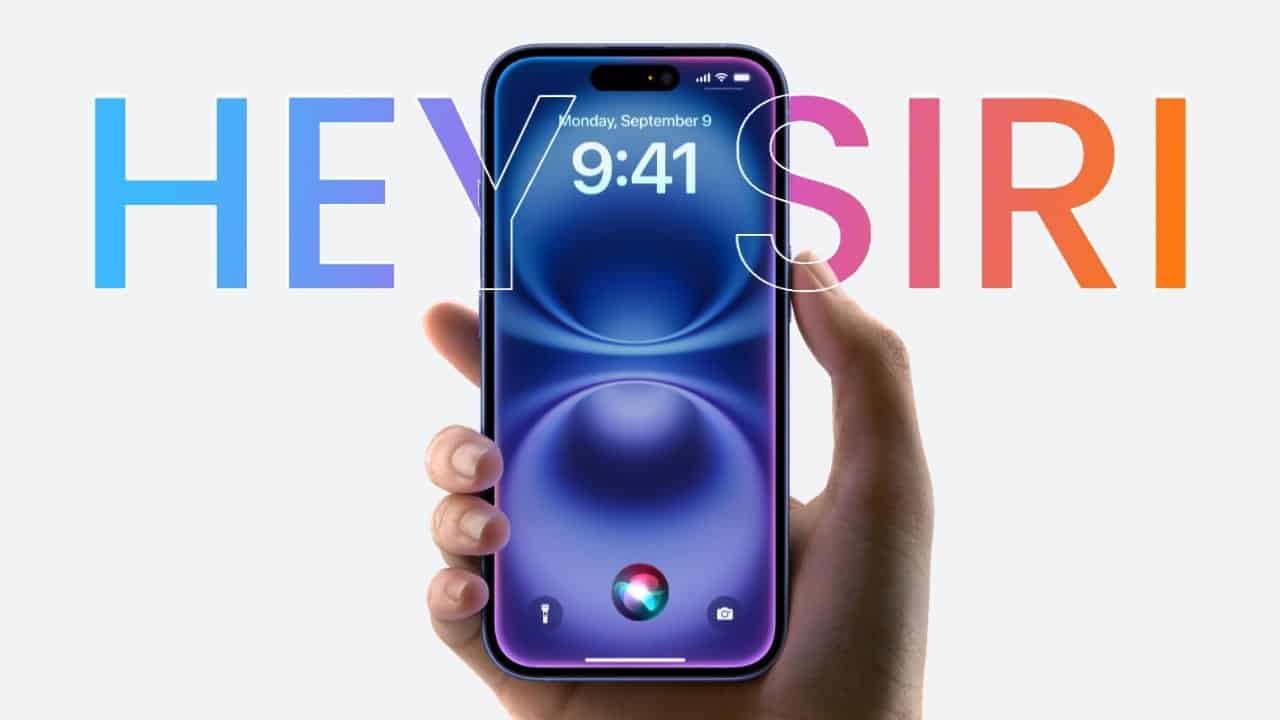
Apple’s iOS ecosystem does not directly support unlocking the main screen via voice for security reasons. However, you can use Siri or specific accessibility features to wake up the screen and execute commands, though full access still requires Face ID, Touch ID, or a passcode.
Step-by-Step Instructions for iOS:
- Activate “Hey Siri”: Navigate to Settings > Siri & Search and enable “Listen for ‘Hey Siri'”.
- Train Siri: Follow the on-screen prompts to train Siri to recognize your unique voice tone.
- Configure Voice Commands: Set up custom phrases like “Hey Siri, wake up my phone.”
- Use Voice Control (Alternative): Go to Settings > Accessibility > Voice Control to set up custom verbal grid actions if you need full hands-free navigation.
- Keep Face ID / Passcode Ready: Ensure your primary biometric or passcode backup is active for core security operations.
Top Recommended Voice Assistant & Productivity Apps for iOS
- Siri Shortcuts: Enables custom voice commands to automate tasks, open apps, and run scripts without touching the screen.
- Voice in a Can: Expands your voice assistant ecosystem, bringing smarter smart-home and operational controls via voice.
- MyVoice Password Manager: Helps you access and manage your encrypted password vault safely using specific voice triggers.
- Look to Speak (by Google): An incredible accessibility app that assists users in navigating communication tools using eye movements and voice.
- Hound: A lightning-fast, detailed voice assistant app that processes complex conversational queries better than standard tools.
The Bottom Line
Setting up a voice lock is a practical way to manage your Android or iOS device without raising a finger.
While Android users can enjoy direct screen unlocking using powerful third-party apps like Voice Screen Lock or Smart Voice Lock, iOS users can leverage Siri Shortcuts and Accessibility Voice Control for hands-free automation. Whichever method you choose, remember to keep a strong PIN or biometric backup active at all times!
Android Apps (Google Play Store): Download Now